

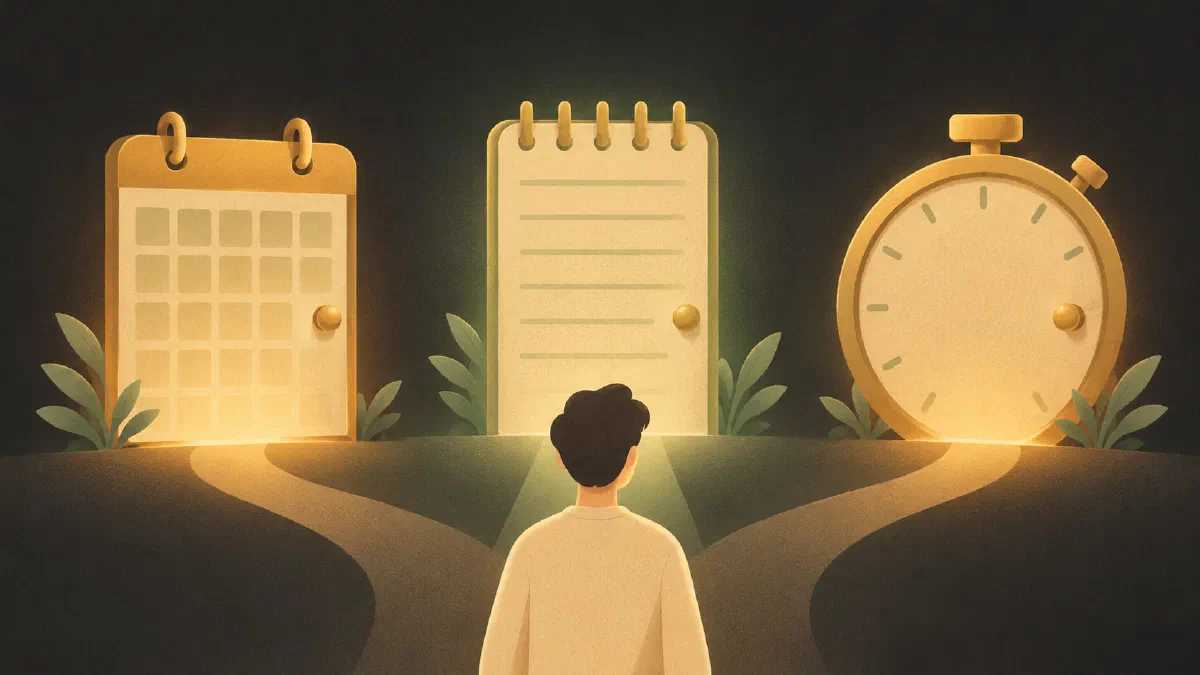
Searching for the best time blocking software usually turns up long lists of apps, each promising to fix your day. This guide takes a different route: it sorts time blocking tools into three categories, shows what each is good and bad at, and gives you a decision table, a criteria checklist and a worked example so you can choose based on how your working day actually runs.
What time blocking software actually has to do
Time blocking means giving each part of your day a specific job: a task, a batch of small tasks, a meeting or a break. You do not need software for it. Author Cal Newport plans each workday on a sheet of paper, spending 10 to 20 minutes each evening and leaving room beside his blocks to make corrections when the day goes differently.
So software is optional, and it is worth choosing only if it does at least one of these jobs better than paper:
- Shows your day as time, not just as a list, so you can see when the day is full.
- Turns tasks into blocks quickly, ideally by dragging a task onto a time slot.
- Protects blocks from new meetings and notifications.
- Makes rescheduling painless when the plan breaks.
- Makes review easy, so you can see where your time went.
It also helps to be realistic about what any tool can do. A 2021 meta-analysis of 158 studies by Aeon, Faber and Panaccio found that time management was moderately related to job performance and somewhat more strongly to wellbeing; the authors suggest it may be mainly a wellbeing enhancer rather than a performance booster. No app changes that; software only makes the planning habit easier or harder.
Two research findings explain why the right tool can help:
- A block is a “when and where” plan. Plans that link a specific situation to a specific action are called implementation intentions. In a meta-analysis of 94 independent tests, Gollwitzer and Sheeran (2006) found they had a medium-to-large positive effect on reaching goals. A calendar block that says “10:00 to 11:00, draft the report” is close to that format. This research was not about apps, so treat the link as a reasonable inference, not proof.
- Plans will run over. The planning fallacy is the well-documented tendency to underestimate how long tasks will take, even when similar tasks took longer in the past. A tool that makes moving blocks slow or annoying will be abandoned the first time your day slips.
The three categories of time blocking tools
Most time blocking apps fall into one of three categories, and many people combine two.
1. Calendar apps
This is the calendar you already use at work or on your phone. Calendars are strong for time blocking because meetings already live there and colleagues can see your blocks. Some include features built for this job:
- In Google Calendar, tasks with a date appear on your calendar, and you can add a start time and how long you plan to spend on a task.
- Google Calendar also offers focus time events that, by default, decline new and existing meetings during the block and can mute Chat notifications. This needs an eligible work or school Google Workspace account; it is not available on every plan.
- In new Outlook for Windows and Outlook on the web, you can drag a task from the To Do tab in the My Day pane onto your calendar to book time for it. Our guide to time blocking in Outlook walks through the setup.
- Microsoft’s Viva Insights in Outlook can suggest open slots during your working hours and book them as focus time, which can minimise Teams chat and call notifications.
The weak spot of calendars is the task list. It is often basic or lives in a separate pane, so planning means switching back and forth.
2. Planner apps (tasks next to a calendar)
This category puts your task list and your calendar side by side and lets you drag tasks into time slots. Some versions also suggest or automatically schedule blocks for you. They suit people who replan several times a day, because moving a block and seeing what got pushed out is usually quicker than in a plain calendar.
The trade-offs are real: another app to open, another subscription in many cases, and one more place where tasks can hide. Most important, a planner app is only useful if it stays in sync with the calendar your colleagues book meetings into. Check whether it connects directly to your work calendar, or at least supports iCalendar, the IETF standard format for representing and exchanging calendar data. Some employers do not allow third-party apps to read work calendars, so ask before you commit.
3. Focus timers and phone focus modes
Focus timers do not plan your day. They help you live inside one block: start it, stay with it and notice when it ends. They are the right tool when you know what the block is for but find it hard to begin or keep going.
Your phone can help protect the block too. On Android, for example, Focus mode in Digital Wellbeing pauses the apps you choose, so you cannot use them and get no notifications from them, and you can set a schedule so it turns on automatically.
Protecting the block matters because interruptions have a cost even when work still gets done. In a study by Mark, Gudith and Klocke (2008), interrupted participants compensated by working faster, but reported more stress, frustration, time pressure and effort.
Paper still counts
A paper planner or a printed time blocking template has no sync, no notifications and no subscription. It works well for people who get pulled into their phone the moment they open it. Its limits: it does not know about meetings added after you printed it, and it cannot remind you when a block starts.
The categories side by side
| Calendar app | Planner app | Focus timer / focus mode | Paper | |
|---|---|---|---|---|
| Best at | Fitting blocks around meetings | Fast replanning, tasks and time in one view | Starting and protecting one block | Fewer distractions, quick sketching |
| Weak at | Task lists, quick replanning | Extra app, sync with work calendar | Planning the whole day | Changes, reminders, shared visibility |
| Colleagues see your blocks | Yes | Only if it syncs back | No | No |
| Extra cost | Usually part of an account you have | Often a subscription; check the listing | Varies; phone focus modes are built in | A notebook |
Decision table: which tool fits how you work
Find the row that sounds most like your typical week. If two rows fit, start with the first one and add the second only after a week.
| If your week looks like this | Start with | Why |
|---|---|---|
| Mostly meetings set by other people | Your work calendar, with focus time if your plan includes it | Blocks have to fit around meetings you do not control |
| Long stretches of self-directed work | Work calendar plus a task list you can drag onto it | You need tasks and time in one place, not another app |
| Your plan breaks by mid-morning most days | A planner app with quick rescheduling, or paper with a correction column | The tool must make replanning cheap |
| You know what to do but struggle to start or stay with it | A focus timer plus a scheduled phone focus mode | The plan is not the problem; the start is |
| Work and family calendars compete | One calendar that shows both | Clashes appear when you check two places |
| You get pulled into your phone easily | Paper plan plus a simple timer | Fewer reasons to unlock the phone |
| Your employer restricts third-party apps | Built-in calendar, tasks and focus features only | Avoids sync and policy problems |
Eight criteria to check before you commit
Run any app you are considering through this list. If it fails the first two, it will probably not last.
- It syncs both ways with the calendar you must use at work. Blocks created in the app should appear in your work calendar, and new meetings should appear in the app.
- Creating and resizing a block takes seconds on both your phone and your laptop.
- Tasks and blocks are visible in one view, so you do not plan in one app and work from another.
- Rescheduling is easy. Moving a block, or pushing a task to tomorrow, takes one action. Given the planning fallacy, you will do this often.
- You control notifications. You can choose which alerts you get, such as a block starting, and silence the rest.
- You can export your data in a common format, so you can leave without retyping everything.
- It fits your employer’s rules on which apps may access work calendars and data.
- You know the trial and cancellation terms before you start, and the trial end date is in your calendar.
Broader comparisons of tools that track time, manage tasks or bundle everything together are in our guides to time management apps and productivity apps.
Worked example: choosing tools for one working week
The following is an illustrative example, not a real person’s story.
Ana is an account manager. She has about 15 hours of meetings a week, her company uses Outlook, and she has tried two planner apps that she stopped opening after a few weeks. Her problem: proposals and reports keep sliding to Friday afternoon.
Step 1: match her week to the decision table. Her week is meeting-heavy, and her bigger problem is starting proposal work once she has a free hour. Rows 1 and 4 fit.
Step 2: choose the smallest setup. Work calendar for blocks, To Do tasks dragged into it for proposal work, and a focus timer for the start. No new planner app.
Step 3: plan one day. Her Monday:
| Time | Block | Tool |
|---|---|---|
| 08:30–09:00 | Plan the day, drag two tasks into the calendar | Outlook + To Do |
| 09:00–10:30 | Draft client proposal | Outlook block + timer, phone focus mode on |
| 10:30–10:45 | Buffer | Empty |
| 10:45–12:00 | Meetings | Outlook |
| 13:00–13:30 | Email and messages batch | Outlook block |
| 13:30–15:00 | Meetings | Outlook |
| 15:00–16:00 | Report figures | Outlook block + timer |
| 16:00–16:30 | Buffer and replan tomorrow | Empty |
Step 4: test for five days and note what breaks. On Tuesday, a client call moved and two blocks had to shift; dragging them took under a minute, so the calendar passed criterion 4. By Thursday, she noticed she often sat in front of the report block without starting. She shortened its first session to 25 minutes on the timer, with the rule that she could stop after one session.
Result: she kept the setup. She did not need a new app, just protected blocks in her existing calendar and a clear start signal.
A note for readers with ADHD
Time blocking with ADHD often needs different block lengths, more buffers and more visible cues than the standard method. Those adjustments are covered in our guide to time blocking with ADHD. For tool choice, the same criteria apply. Pay particular attention to criteria 2 and 4: a tool that makes setting up or moving a block slow is one you are likely to stop using.
Where Cyklio fits
Disclosure: Cyklio is our own app, made by Mindly 360. It is a focus timer, not a calendar or a planner, so it fills the third category only. You choose sessions from 10 to 60 minutes, set a daily goal in hours shown as a progress ring, rate each session (full focus, distractions or not today), and see daily, weekly and monthly reports, which can help with the review job. It is available on Android (Google Play) in English and Polish, with iPhone coming, and has a 7-day free trial with full access, no account and no card needed. If you would rather not install anything, the free Cyklio Focus Timer runs in your browser.
Summary
- Time blocking tools come in three categories: calendars, planner apps and focus timers. Paper is a valid fourth option.
- Start with the calendar you already use; many work calendars can turn tasks into blocks and protect focus time.
- Add a planner app only if replanning in your calendar is slow, and a focus timer if starting blocks is the hard part.
- Check sync, quick rescheduling, notification control, export and your employer’s rules before you commit.
Next step: pick your row in the decision table, set up tomorrow’s three most important blocks in your current calendar, and start the first one with a focus timer. Test the setup for one normal week before you add any new app.