


Search for the best time management apps and you get long lists that mix calendars, to-do apps, timers and trackers as if they did the same job. They do not. This guide sorts the tools into four categories, gives you seven criteria for choosing, and ends with a decision table and a one-week test so you can build a small setup that fits your working day.
The four kinds of time management apps
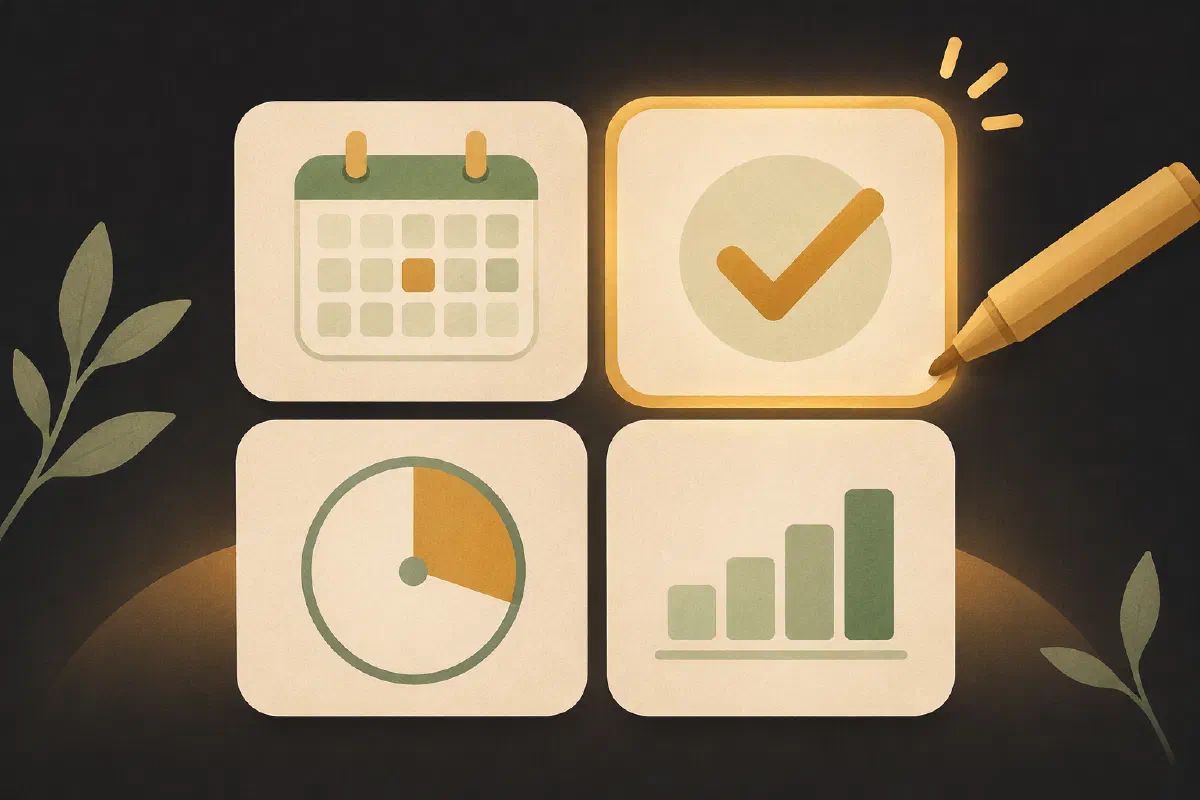
Almost every time management tool falls into one of four categories. Each answers a different question about your day.
| Category | The question it answers | Typical features | Common examples |
|---|---|---|---|
| Calendar | When will this happen? | Events, reminders, shared schedules, meeting invites | Google Calendar, Outlook, Apple Calendar |
| Task manager | What do I need to do? | Lists, due dates, projects, recurring tasks | Todoist, Microsoft To Do, TickTick |
| Focus timer | How do I start, and when do I stop? | Countdown sessions, breaks, session history | Phone timers, Pomodoro-style apps, Cyklio |
| Time tracker | Where did my time actually go? | Manual or automatic logging, reports by project | Toggl Track, RescueTime, Clockify |
Many apps blur the lines. Task managers add calendar views, calendars add tasks, and some trackers include timers. That is fine, but it helps to know which job an app does best, because that is the job you will actually use it for.
A useful rule: start from the question you struggle with most. If you miss meetings, you need a calendar you trust. If you forget what you promised to do, you need a task manager. If you know what to do but cannot get going or keep going, a timer is closer to the problem. If your days vanish and you do not know why, a tracker shows you.
Do time management apps actually help?
Be careful with any claim that an app will “save hours”. The research is about time management habits, not specific apps.
The broadest evidence is a 2021 meta-analysis in PLOS ONE that pooled 158 studies with almost 54,000 participants. It found that time management is moderately related to job performance, academic achievement and wellbeing, and that its link with wellbeing, especially life satisfaction, was stronger than its link with performance. It did not test apps, so the honest reading is: the habits matter, and an app is useful only if it makes those habits easier.
Three findings help explain why some tools earn their place:
- Writing a plan can quiet unfinished tasks. In a series of experiments, Masicampo and Baumeister (2011) found that unfinished goals caused intrusive thoughts and worse performance on an unrelated task, and that making a specific plan for those goals removed those effects. This is the case for a task manager: a trusted place to put things down.
- Recording progress helps people reach goals. A meta-analysis of 138 randomised studies found that interventions prompting people to monitor their progress had a small-to-moderate positive effect on goal attainment, with larger effects when progress was physically recorded or reported publicly (Harkin et al., 2016). Timers with session logs and time trackers make this kind of record easy.
- We misjudge how long things take. Psychologist Roger Buehler describes the planning fallacy as an optimistic bias that makes people underestimate how long a task will take. His suggested fixes include looking at how long similar tasks really took, breaking plans into smaller steps, and committing to do parts of a task at specific times. A tracker gives you the first; a calendar gives you the last.
These studies were not about any app and none of them shows one tool beating another. They do suggest what to look for: easy capture, a visible record and plans tied to real times.
How to choose: seven criteria
Once you know the category, compare apps inside it with these criteria.
- It fixes your main bottleneck. Write your problem in one sentence (“I lose afternoons to messages”, “I forget small promises”) and check that the app’s core feature addresses it. Extra features you do not need are clutter, not value.
- Capturing is fast. If adding a task or event takes more than a few seconds, you will stop doing it on busy days. Look for quick-add, widgets or voice input, and try it with your phone in one hand.
- It works with what your job already uses. If your workplace runs on Outlook or Google Workspace, a calendar or task app that syncs with it saves you from keeping two schedules. Check sync before you invest time in setup.
- You control the notifications. Alerts are useful for meetings and deadlines, but they cost attention even when you ignore them. In a study of 166 students summarised by the Association for Psychological Science, those who received a call or text during an attention task made more errors than those who did not, even without touching the phone. Choose apps that let you set exactly which reminders you get. Google Calendar, for example, lets you add up to five notifications per event, which is flexible but also an easy way to overdo it.
- There is one home for each kind of information. Every extra app is another place to check, and switching has a cost. In experiments by Rubinstein, Meyer and Evans (2001), switching between tasks cost people time, and the cost grew as the tasks’ rules became more complex. Keep tasks in one place and appointments in one place.
- The privacy summary makes sense. A calendar or task app holds a lot about your life. On Android, check the Data safety section, keeping in mind that Google describes it as based on information declared by app developers. Treat it as a first filter rather than a guarantee.
- Pricing is clear, and so is cancelling. Many apps have a free tier with limits and a paid tier with more. If you start a trial, put the end date in your calendar. Note that on Google Play, uninstalling an app does not cancel its subscription; cancel in the store instead.
Decision table: which tool for which problem
Use this table to pick your first tool. Find the row that sounds most like your week.
| If your main problem is… | Start with | What to look for | Watch out for |
|---|---|---|---|
| Missing meetings or double-booking | Calendar | Sync with your work account, reliable reminders, shared calendars | Too many alerts per event |
| Forgetting small tasks and promises | Task manager | Fast capture, due dates, recurring tasks | Spending more time organising than doing |
| Too many tasks, unclear priorities | Task manager with a daily view | A “today” list, priorities, easy rescheduling | Endless lists you never review |
| Knowing what to do but not starting | Focus timer | One-tap start, short sessions, a calm end signal | Gamification that adds pressure |
| Days disappear and you do not know where | Time tracker | Simple start/stop or automatic logging, weekly reports | Tracking every minute and burning out on it |
| Estimates are always too optimistic | Time tracker plus calendar | Reports by task type, time blocks on the calendar | Planning days with no buffer |
| Planning your week into blocks | Calendar or time blocking app | Drag-and-drop blocks, task-to-calendar link | Rebuilding the plan from scratch every day |
If two rows fit, start with the one that causes the most stress. You can add a second tool later, once the first one is a habit.
For the last row, our comparison of time blocking apps and software goes into calendar-based planning tools in detail.
Examples by category (not a ranking)
The table below shows one example per category so you can see what the criteria look like in practice. It is not a ranking, and we have not tested these apps side by side. Details come from each product’s own site, checked on 14 November 2026. Plans and features change, so confirm before you rely on them.
| Example | Category | What the official site says | Worth knowing |
|---|---|---|---|
| Google Calendar | Calendar | Up to five notifications per event, set from your default settings or per event | Guests on Google Calendar get reminders from their own settings, not yours |
| Todoist | Task manager | Free plan with 5 personal projects, task reminders, list and board layouts, and one week of activity history | Calendar layout, custom reminders and task duration are paid features |
| Toggl Track | Time tracker (manual) | Free plan for up to 3 users with manual and real-time timers and Google and Outlook calendar integrations | Team reports and billable rates start on paid plans |
| RescueTime | Time tracker (automatic) | Runs in the background and automatically tracks time spent on apps and websites; requires a desktop app | New sign-ups get a two-week free trial, after which billing starts |
| Cyklio (our own app) | Focus timer | Focus sessions from 10 to 60 minutes, a daily goal in hours with a progress ring, a rating after each session | 7-day free trial with full access, no account and no card |
Disclosure: Cyklio is our own app, made by Mindly 360. It is a focus timer, not a calendar or task manager. You choose sessions from 10 to 60 minutes, rate each one as full focus, distractions or not today, and see daily, weekly and monthly reports. It is available on Android (Google Play) in English and Polish, with iPhone coming. If you would rather try timed sessions without installing anything, the free Cyklio Focus Timer runs in your browser.
If a focus timer is the category you need, our guide to the best apps for the Pomodoro Technique covers timer-specific features in more depth.
A small setup for a working day
Most people do well with two tools: one for what (tasks) and one for when (calendar), plus a timer on days when starting is hard. Here is an illustrative example of how that can look.
Imagine an account manager who works hybrid and juggles client calls with reports. She uses her employer’s calendar for meetings, one task app for everything else, and a timer for the report she keeps postponing.
- 8:45, five-minute plan. She opens the task app’s “today” view, picks three tasks and drags the report into a 60-minute block on her calendar at 10:00.
- 10:00, report block. She starts a 40-minute focus session, with only the session-end alert switched on, and then a short break. The second session finishes the draft.
- 13:30, calls. Calendar reminders bring her to each call on time. New requests from calls go straight into the task app with quick-add.
- 17:00, two-minute review. Unfinished tasks move to tomorrow. She notes that the report took about 80 minutes, not the 45 she guessed, and uses that next time.
Nothing here needs a premium plan or a complex system. The tools stay in their lanes, and each one is opened for a reason.
One-week test before you commit
- Pick one category from the decision table, and one app in it.
- Set it up in 15 minutes or less. Turn off every notification you did not choose on purpose.
- Use it for five working days on real work, not a quiet test afternoon.
- Each evening, answer three questions: Did I open it without forcing myself? Did it save me a worry or a missed thing? Did it add any new distraction?
- On day five, decide: keep it, change one setting and run another week, or remove it and try the next candidate.
- If you started a trial, check the end date you put in your calendar on day one.
- Add a second tool only after the first one sticks.
If you want a paper record alongside the app, our time log template is a simple way to see where a day goes before you choose a tracker.
If you have ADHD
This guide covers general-purpose tools. If you have ADHD, the same categories apply, but features such as visual time, very short sessions and forgiving reminders often matter more. See our guide to ADHD time management tools for timers and visual clocks, and our comparison of the best planner apps for ADHD for planning apps chosen with those needs in mind.
Summary
Time management apps come in four kinds: calendars for when, task managers for what, focus timers for starting and stopping, and time trackers for where the time went. Research supports the habits behind them, such as writing plans down, recording progress and tying tasks to real times, rather than any single app. Choose the category that matches your main problem, compare apps with the seven criteria, keep notifications deliberate, and test one tool for a week before adding another.
Your next step: pick the one row in the decision table that sounds most like your week and start the one-week test tomorrow. If your row is “knowing what to do but not starting”, you can try a calm focus session in the free Cyklio Focus Timer, or in Cyklio, our own app, with a 7-day free trial and no account needed.