


A visual timer turns “how long is left?” into something you can see from across the desk. This guide compares physical and app timers, explains which display features actually help when time is hard to track, and gives you a decision table and a short checklist so you can choose one without spending an afternoon on reviews.
What a visual timer is
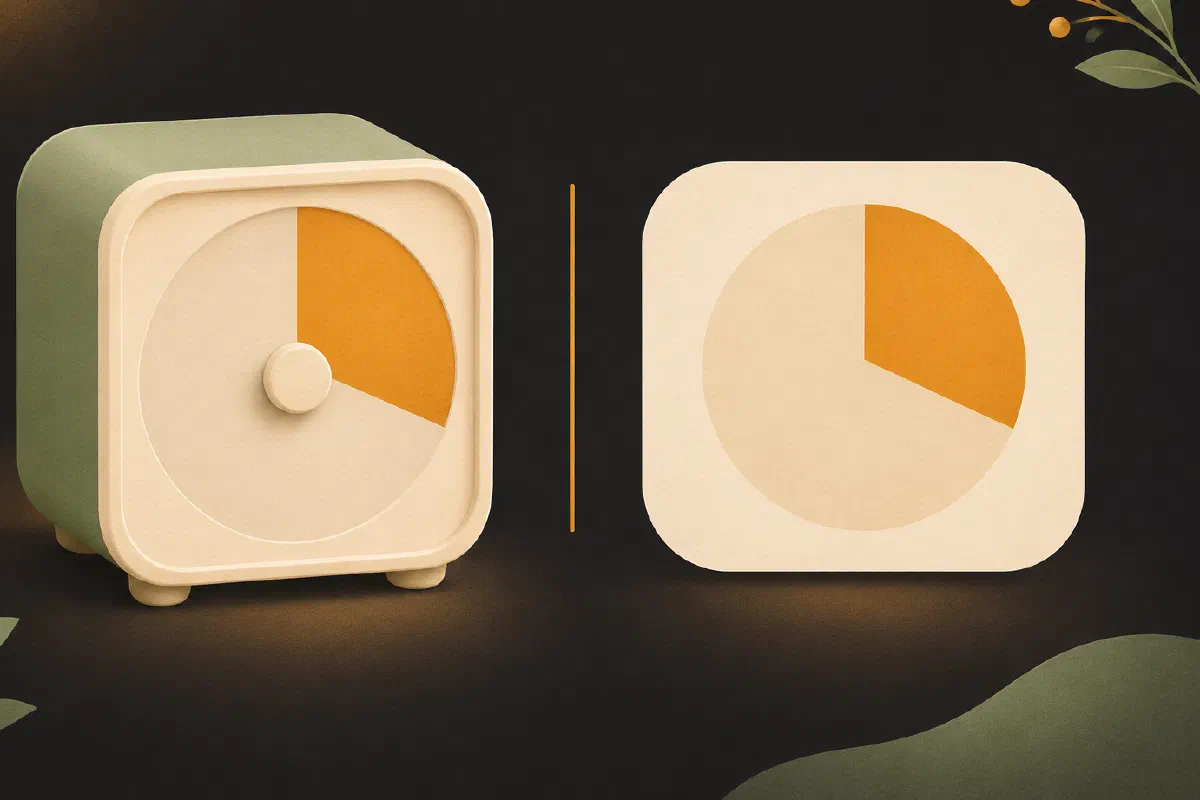
A visual timer shows the time remaining as a shape that shrinks: a coloured disc that gets smaller, a wedge that closes, a bar that empties or a set of dots that disappear one by one. Researchers who studied time aids for children with ADHD describe them as timers that show time “graphically as dots or a surface that decrease in numbers or size” (Wennberg et al., 2018).
The difference from an ordinary countdown is the format. “14:37” is a number you have to read and interpret; a disc that is a quarter full shows how much is left at a glance.
You may also see the term “time timer”. It comes from a well-known brand, Time Timer, whose products use a red disc that, in the company’s words, “disappears as time elapses”. The brand sells physical timers, a watch and apps (Time Timer). This guide focuses on features rather than brands, because the right choice depends on you more than on the label.
Why making time visible can help with ADHD
Time management difficulties are a recognised part of adult ADHD. The US National Institute of Mental Health lists “poor time management, planning, or organization” and “disorganization and procrastination” among the symptoms adults can have (NIMH, 2024). The NHS describes “finding it hard to organise your time” as one of the signs of inattentiveness in adults (NHS, 2025).
Lab research also suggests that the sense of time itself can work differently. A 2022 meta-analysis that pooled 55 studies found that people with ADHD, on average, were less accurate at estimating and producing short durations and gave more variable estimates of intervals lasting several seconds (Marx et al., 2022). Those studies measured milliseconds to seconds, not an afternoon of work. A review of research in adults found that studies are scarce and their results mixed (Mette, 2023). The everyday experience is often called “time blindness”, which is a popular term, not a diagnosis. Our guide to time blindness explains what is and is not known.
A visual timer does not change how your brain judges time. What it does is move the job out of your head: instead of estimating, you look. That idea appears in official support guidance. The Job Accommodation Network (JAN), a US service that advises employers and employees on workplace accommodations, lists “assistive technology (timers, apps, calendars, etc)” under time management for people with ADHD, and suggests “timers and watches” for concentration, executive functioning and managing time (JAN).
How strong is the evidence?
Honest answer: limited, and mostly indirect.
- Children: In a randomised controlled trial with 38 children aged 9 to 15 with ADHD, all on stable medication, a programme combining time-skills training with time aids chosen by an occupational therapist improved time-processing ability more than education and standard care alone at 24 weeks. Parents also rated daily time management as better, although the children’s own ratings did not change significantly. A visual timer was the example the authors gave of an aid for time perception, and most children used one or two aids (Wennberg et al., 2018). Because the timers were part of a wider programme, the trial cannot tell us how much the timers alone contributed.
- Adults: In a small study of 19 adults with ADHD (as described by Wennberg et al., 2018), participants tried 74 different cognitive aids with support from occupational therapists over 15 months. Weekly schedules, watches and weighted blankets were the most highly valued. The authors concluded that, to be of optimal use, these aids require “individually tailored, systematic and structured support” by specially trained professionals (Lindstedt and Umb-Carlsson, 2013).
- Products: Neither study compared timer brands, or physical with app timers, so this research cannot tell you which product to buy.
Two practical lessons come out of this research. First, the aid was chosen for the person, not the other way round. The children’s trial cites a review naming factors that matter for assistive devices: whether the user’s opinions are considered in choosing the device, whether the user is motivated and whether use is checked regularly (Wennberg et al., 2018). Second, a timer is usually one part of a routine, not the whole answer. That is why the rest of this guide is about matching a timer to your situation rather than naming one winner.
Physical vs app visual timers
Most visual timers fall into two groups: a physical object on your desk or wall, or an app on your phone, computer or watch. Neither is better for everyone. They solve different problems.
| Physical visual timer | App or screen timer | |
|---|---|---|
| Where it lives | On the desk, shelf or wall, always in the same spot | Phone, computer, tablet or watch |
| Visibility | Visible all the time without unlocking anything | Visible only while the screen is on and the app is open, unless it shows on a lock screen, widget or watch face |
| Distractions | No notifications, no other apps | Shares a device with messages, email and feeds |
| Setup | Usually one twist or press | A few taps; presets can make it one tap |
| Session range | Limited to the range printed on the dial | Usually any length; can save presets |
| Sound | Some models tick or have a fixed alarm; look for silent models | Usually adjustable: sound, vibration or silent |
| Portability | Bulky to carry between rooms or offices | Goes wherever your phone or laptop goes |
| History | None | Many apps log sessions and show reports |
| Cost | A one-off purchase | Free, one-off or subscription, depending on the app |
| Work rules | Fine where phones are not allowed on desks | Fine where a physical object would look odd or be lost |
When a physical timer makes more sense
The biggest advantage of a physical timer is that it is not your phone. A phone brings everything else with it. In a lab study, simply receiving notifications, without picking up the phone or replying, worsened performance on an attention-demanding task about as much as making calls or sending texts (Stothart et al., 2015). That study did not look at ADHD specifically, but if checking the timer tends to turn into checking messages, a separate object removes that step.
A physical timer also stays visible. You do not have to unlock anything, and it is there in the same place every day, which can make it part of the routine rather than another thing to remember.
When an app makes more sense
Apps win on flexibility. You can carry them between home, office and meeting rooms, set any session length, save presets for your usual sessions and choose a silent or gentle end signal. Many also keep a record of your sessions, which helps you see which session lengths actually work for you, something a physical timer cannot do.
If you choose an app, turn on do-not-disturb or a focus mode for the session, and use a widget, lock-screen display or watch face so you can see the time left without opening anything.
Using both
You can also use both: a physical timer at the desk and an app for everywhere else. If you work at a computer, a timer in a small window on a second screen can do the job of a physical timer.
What visibility actually helps: 8 features to look for
These features follow from what a visual timer is for: letting you see time pass without effort and without new distractions. They are practical design criteria, not results from trials.
- The time left is shown as an area, not only as digits. A disc, wedge or bar should shrink as time runs out, so that a glance tells you roughly how much remains. Digits can be shown as well, but they should not be the main display.
- You can read it from your normal seat. The shape should be large enough to read at a glance from where you actually sit, which may be an arm’s length on a desk or across a room on a wall. Put it within your line of sight rather than behind your monitor.
- The shape stands out from its background. Web accessibility guidelines ask that the parts of a graphic needed to understand it have a contrast ratio of at least 3:1 against neighbouring colours (W3C, WCAG 2.2, 1.4.11). That is a rule for websites, but it is a useful test for any timer: a pale wedge on a pale face is hard to read at a glance.
- Colour is not the only signal. People with colour vision deficiency have difficulty telling some colours apart (NHS), and accessibility guidelines say colour should not be the only way information is shown (W3C, WCAG 2.2, 1.4.1). If a timer turns from green to red near the end, the size of the shape should also make that clear.
- It runs quietly and the end signal suits you. In a study of 116 adults with ADHD, participants reported more sensory over- and under-sensitivity than norm groups, with the clearest differences for activity level and hearing (Bijlenga et al., 2017). If ticking or a loud beep bothers you, look for a silent movement and an end signal you can choose: a soft sound, vibration, light or none.
- Movement is calm. The shape should shrink smoothly or in small steps, without flashing, bouncing or celebratory animations. Accessibility guidance notes that some people find animated content distracting or even nauseating (W3C, WCAG 2.2, 2.3.3).
- It starts in one move. If starting the timer takes several steps, it will often not get started on hard days. Look for a dial you twist once, a single button or one-tap presets.
- The scale matches your sessions. A timer whose face covers 60 minutes shows a 10-minute session as a thin sliver. If you mostly use short sessions to get started, a smaller scale or an app that fills the whole display for any length makes the remaining time easier to see.
Finally, check that it works where you work: battery life, offline use and any rules about phones or devices.
Decision table: which type fits your situation
Use the row closest to your situation as a starting point. These are reasoned suggestions, not tested prescriptions.
| Your situation | Better first choice | Why | Watch out for |
|---|---|---|---|
| Checking the time on your phone often turns into scrolling | Physical timer | Keeps the phone out of sight and out of reach | Ticking models if you are sound-sensitive |
| You move between home, office and meeting rooms | App, ideally with a watch or widget view | Goes with you and remembers your presets | Notifications: use do-not-disturb during sessions |
| Phones are not allowed on desks at work | Physical timer | Allowed where phones are not, and visible to you without a screen | A loud end signal in a shared space |
| You share a quiet office or work near sleeping children | Silent physical timer or app on vibration | No ticking, no alarm | Timers whose alarm cannot be switched off |
| You mostly need help getting started on avoided tasks | Either, with short sessions shown large | Short sessions are easier to begin and should be clearly visible | A 60-minute face that makes 10 minutes look tiny |
| You want to know which session lengths work for you | App with session history | Records sessions and shows patterns over weeks | Spending more time on stats than on work |
| You work mainly at a computer and dislike extra objects | Desktop or browser timer in a small window | Stays in view without another device | The window getting buried under other windows |
| You tend to lose track of time in absorbing work | Visual timer plus a separate audible alarm for hard stops | The visual helps you pace; the alarm catches what you must not miss | Relying on a silent display for meetings or pickups |
If you want to go further than choosing a timer, our guide to the ADHD timer method covers how to use timed sessions day to day, and time blocking with ADHD shows how to plan the blocks a timer then counts down.
Worked example: choosing a timer in one week
The following example is illustrative. It shows how the criteria above can play out for one working adult; it is not a real case or a study result.
Maya is a project coordinator who works three days in the office and two at home. She says she “looks up and it’s suddenly 4 p.m.” and that checking the time on her phone usually ends with five minutes in her inbox.
Monday: notice the problem. She notes where time slips (morning email, afternoon spreadsheets) and that the ticking clock in her home office irritates her.
Tuesday: match the problem to features. Using the decision table, she picks “checking the time on my phone turns into scrolling” and “I move between home and office”. That points to a physical timer at home and an app in the office. From the feature list, her must-haves are: silent running, a shape she can read from her chair, and a dial she can set in one move.
Wednesday: try what she already has. She runs a free browser timer in a small window on her second monitor. It helps, but the window keeps getting covered.
Thursday: buy one simple object. She chooses an inexpensive silent desk timer with a large disc for her home desk and keeps a phone app with do-not-disturb for office days.
Friday: check it against real use. At the end of the week she asks three questions: Did I actually start it? Could I read it without picking anything up? Did the end signal work without making me jump? Two yeses and one “sometimes” (she forgot to start it twice), so she adds a trigger: she starts the timer when she closes her inbox.
The order is the point: name the problem, pick matching features, test cheaply, then buy something simple and review it.
A 15-minute visual timer checklist
Copy this list and fill it in before you buy or install anything.
1. Where does time slip for me? (2 minutes)
- Situation where I lose track most often: ______________________
- What usually pulls me away (phone, email, another task, nothing in particular): ______________________
2. Where will the timer live? (2 minutes)
- Main place I will use it (desk, kitchen, office, several places): ______________________
- Distance from my eyes to where it will sit: ______________________
- Are phones or extra objects allowed there? Yes / No
3. What do my senses need? (3 minutes)
- Ticking is fine / bothers me
- End signal I want: sound / soft sound / vibration / light / none
- Colours I find hard to tell apart (if any): ______________________
4. What sessions will I run? (3 minutes)
- My usual session length: ______ minutes
- My shortest session (for getting started): ______ minutes
- Does the timer’s scale show my shortest session clearly? Yes / No
5. Must-have features (3 minutes) (tick at most four)
- Shrinking shape I can read from my seat
- High contrast, not colour-only
- Silent running
- Adjustable or gentle end signal
- One-move start
- Portable
- Session history
- Works offline
6. Test plan (2 minutes)
- I will try it for one week, starting: ______________________
- Trigger that starts the timer (for example: closing my inbox, sitting down after lunch): ______________________
- On Friday I will check: Did I start it? Could I read it at a glance? Did the end signal work for me?
Common mistakes when choosing a visual timer
| Mistake | Why it backfires | What to do instead |
|---|---|---|
| Buying the most popular model without checking your needs | A loud tick or tiny scale can make a good timer wrong for you | Fill in the checklist first and choose by features |
| Putting the timer out of your line of sight | A visual timer only helps if you see it without trying | Place it where your eyes rest when you look up from work |
| Using a phone timer with notifications on | Notifications can disrupt attention even when you do not respond (Stothart et al., 2015) | Turn on do-not-disturb, or use a physical timer |
| Relying on colour change alone | Some people cannot easily tell the colours apart (NHS) | Choose a display where the shape itself shows the time left |
| Expecting the timer to do the work | In the research, the authors concluded that aids need individually tailored, structured support (Lindstedt and Umb-Carlsson, 2013) | Pair the timer with a fixed trigger and a weekly review |
| Using one silent visual timer for everything | It is easy to miss a quiet display during absorbing work | Add a separate audible alarm for meetings and hard stops |
If what you are really after is a timer for focus sessions and breaks, our guide to the visual Pomodoro timer covers that use specifically, and our article on the best timer setup for ADHD at work covers session lengths, breaks and alarms in an office day.
When a timer is not enough
A visual timer is a tool for seeing time. It does not diagnose or treat anything. If ADHD symptoms, such as finding it hard to organise your time, are affecting your studies, work or relationships, the NHS advises making an appointment with a GP to find out what support is available (NHS, 2025). The NHS also mentions reasonable adjustments at work, such as help from another person to plan and structure your tasks (NHS, 2025). NIMH notes that effective treatment for ADHD often involves a combination of elements (NIMH, 2024).
Use a timer alongside that support, not instead of it, and do not change any treatment because a timer routine seems to be working.
Where Cyklio fits (and where it does not)
Cyklio is a calm focus timer app made by us, Mindly 360, so we are not neutral about it. It is an app, so it has the strengths and weaknesses of the app column in the comparison table above.
What it offers: focus sessions from 10 to 60 minutes, a daily goal in hours shown as a progress ring that fills up as you work, a quick rating after each session (full focus, distractions or not today), and daily, weekly and monthly reports. It is available in English and Polish on Android, with iPhone coming. You get 7 days of full access free, with no account and no card needed.
What it does not replace: if your phone pulls you into other apps, a physical timer may suit you better. Some people use a physical timer for sessions and an app like Cyklio to track the day. If you would rather not install anything, the free Cyklio Focus Timer runs in your browser. For more about the app, see the Cyklio app page.
Summary
- A visual timer shows time left as a shrinking shape, so you can see how much remains without reading or calculating.
- Timers appear in workplace accommodation guidance for ADHD, and a children’s trial that included visual timers found benefits, but the research did not compare specific timer products.
- Physical timers keep the phone away; app timers are portable, adjustable and keep a history. You can also use both.
- Choose by features: readable from your seat, high contrast and not colour-only, quiet, a gentle end signal, one-move start and a scale that fits your sessions.
- Test any timer for a week with a fixed trigger, and talk to a GP if time problems keep affecting your life.
Your next step: fill in the 15-minute checklist above, then run one 10-minute session today on a task you have been putting off, using a timer you already have, the free focus timer or Cyklio, and note whether you could read the time left at a glance.